> For the complete documentation index, see [llms.txt](https://docs.allocations.com/llms.txt). Markdown versions of documentation pages are available by appending `.md` to page URLs; this page is available as [Markdown](https://docs.allocations.com/deals/deal-setup.md).
# Deal Setup
How to setup a new deal on Allocations
To setup a new deal, go to Deals section on the left below the Dashboard. After clicking "Deals", a new screen will appear with all existing Deals, click on "Create Deal" button on the right hand side in green color.
After that fill in basic details like Deal Display Name, whether it's an SPV, Fund or Migration and the Phone No. as shown below:
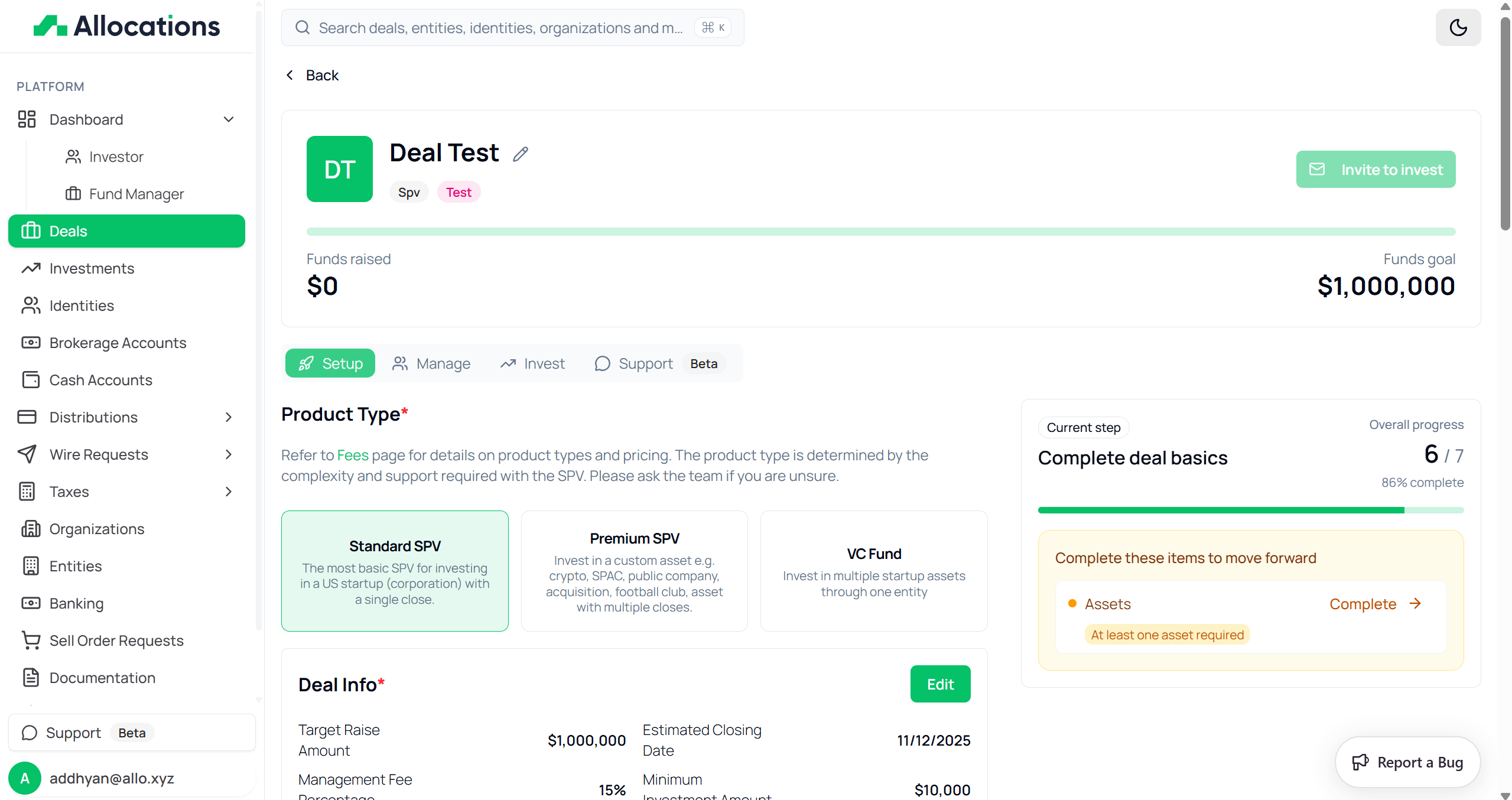
Fund Managers can see the "setup screen" for the Deal, as they have to select what type of deal setup they need:
* Standard SPV/Fund (For more Details: )
* Premium SPV/Fund (For more Details: )
* VC Fund (For more Details: )
Once the deal type is selected, Fund Managers are redirected to the **Deal Setup screen**, where they can configure all core details related to the deal.
The setup screen is divided into multiple sections as shown below:
Under **General Details**, managers configure the basic investor-facing information of the deal.
Managers can edit:
* Name (Investor-facing deal name)
* Estimated Closing Date (Expected date of first close)
* Offering Type (506 b or 506 c)
* Memo (Short overview visible to prospective investors)
#### Offering Type
Managers must select the offering structure for the deal:
* 506 b
* 506 c
This selection determines how the deal can be marketed and what type of investors can participate.
The Memo section allows managers to share a short summary or description of the deal that will be visible on the invest page.
### Fund Economics
The **Fund Economics** section defines the financial structure of the deal.
Managers must fill in:
* Target Raise Amount (Total capital intended to be raised)
* Minimum Investment Amount (Lowest commitment accepted per investor)
* Management Fee (Manager compensation during the life of the deal)
* Carry Fee (Performance-based compensation from investor profits)
#### Management Fee Frequency
Managers must also select how the management fee will be charged:
* Once (Typically for SPVs)
* Annual (Typically for Funds)
This setting determines how the management fee is calculated and applied.
### Investors & Compliance
Under **Investors & Compliance**, managers define the expected investor profiles participating in the deal.
Managers can toggle participation eligibility for:
* Accredited Investors
* Qualified Purchasers
* Institutional Firms
Each category has regulatory implications and determines which investors can commit to the deal.
These selections help ensure compliance with SEC regulations and offering type requirements.
### Financial Statements
The **Financial Statements** section defines how often investors will receive reporting updates.
Managers can choose the reporting frequency:
* None
* Quarterly
* Annually
This setting determines how often financial statements will be shared with investors.
After completing all sections, click the **Save** button at the bottom right to apply the changes.
Managers can return to this screen anytime to update deal information before closing.
***
### Roles
The **Roles** section allows Fund Managers to assign key individuals or entities responsible for managing and advising the deal.
This section ensures the correct legal signatories and advisors are linked to the fund or SPV.
#### Fund Manager
The **Fund Manager** is the primary signer on the private fund or SPV.
This is the person or designated entity that:
* Makes management decisions for the fund
* Operates the bank account
* Acts as the partnership representative for tax filings
* Signs legal documents
To assign a Fund Manager:
1. Click the edit icon in the Roles section.
2. Search for an existing identity using the search bar (search by name, type, or country).
3. Select the appropriate identity from the list.
If the identity does not exist, click **Create New Identity** and complete the required details.
Managers can also edit an existing identity by clicking **Edit Identity**.
Once selected, the assigned Fund Manager’s name and email will appear in the Roles section.
#### Advisor
The **Advisor** is a financial professional or firm that provides expert guidance on investment strategy and fund management.
Advisors typically assist with:
* Asset allocation
* Risk management
* Regulatory compliance
* Reporting oversight
To assign an Advisor:
1. Click the edit icon in the Roles section.
2. Search for an existing identity.
3. Select the appropriate advisor identity.
If needed, create a new identity using **Create New Identity**.
#### Forego Advisor Option
If a Fund Manager chooses not to appoint an advisor, they must toggle the **Forego Advisor** option.
By selecting this option, the manager confirms that they have consulted with legal and financial experts and understand the obligations and risks associated with not appointing an advisor.
This confirmation is required for compliance purposes.
After assigning the Fund Manager and Advisor, click **Save** to apply changes.
Managers can return to this section anytime before closing to update assigned roles.
***
### Entity
The **Entity** section defines the legal structure of the SPV or Fund.
This section captures the official formation details and determines how the deal operates from a legal and compliance perspective.
Managers can edit this section by clicking the edit icon on the top right.
#### Entity Details
Under **Entity Details**, managers can configure:
* Registered Name (Legal name of the entity)
* Date of Formation
* Status
* State of Incorporation
These details must match the official formation documents of the entity.
#### Registered Address
Managers must provide the official registered address of the entity.
This includes:
* Address
* City
* Postal Code
* State
* State of Incorporation
The registered address is used for compliance, tax filings, and legal documentation.
### Creating an Entity
If an entity has not yet been created, managers must create one during setup.
When clicking edit, a **Create Entity** screen will appear.
#### Organization
First, managers must select the **Organization** under which the entity will be created.
Managers can:
* Select an existing organization
* Create a new organization
If creating a new organization, enter the organization name and click **Create Organization**.
The selected organization will own and manage the entity.
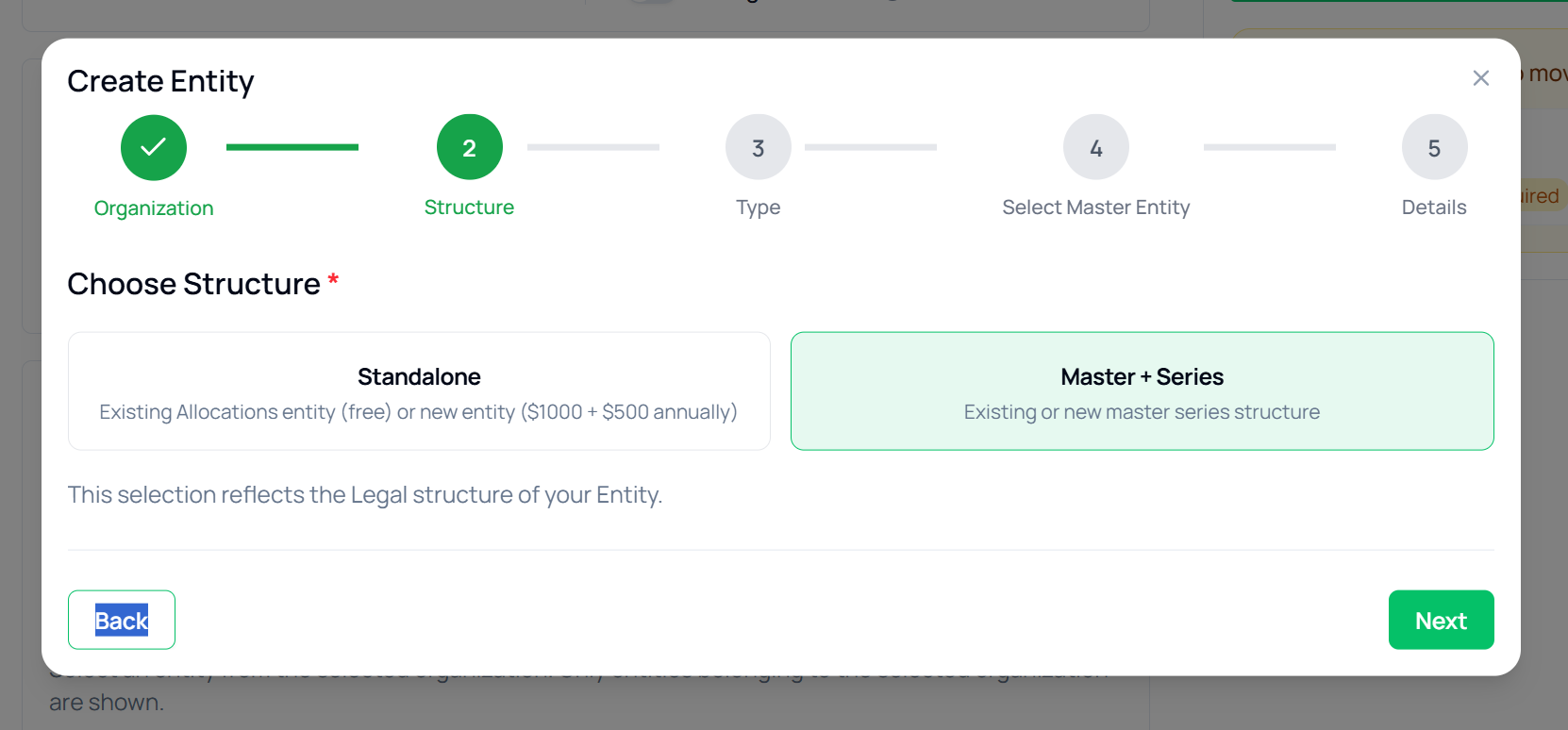
### Entity Structure
Managers must choose the legal structure of the entity.
Available options:
* Standalone (Independent Entity)
* Master + Series (Series under a Master entity)
This selection reflects the legal structure of the SPV or Fund.
Standalone is typically used for single SPVs.\
Master + Series is typically used when multiple series exist under a single master entity.
### Entity Type
Managers must select the legal type of the entity.
Available options:
* LLC (Limited Liability Company)
* LP (Limited Partnership)
This selection determines how the entity is structured for tax and governance purposes.
LLCs are commonly used for SPVs.\
LPs are commonly used for venture funds.
After completing all required information, click **Save** to finalize the entity setup.
Managers can return to this section to update entity details before closing the deal.
***
### Assets
The **Assets** section allows Fund Managers to define the underlying investment for the deal.
Every SPV or Fund must have at least one asset before the deal can be submitted or closed.
If no asset has been added, the screen will display **Add your first Asset** with an option to create a new asset.
To begin, click **Create a New Asset**.
{% columns %}
{% column %}
Under the create asset, fund managers can add assets like:
* Startup
* Crypto
* Secondary
* Real Estate
* SPV into SPV
* SPV into Fund
* Other
Managers can also add Securities in asset like:
* SAFE / SAFT
* Debt
* Preferred Stock / Common Stock
* Convertible Note
* LLC Interest
* LP Interest
* Forward Contract
* Real Estate
{% endcolumn %}
{% column %}
Managers can also select if the instrument can convert into equity, tokens or both. As well as what event triggers the conversion like:
* Priced Round
* Token Launch
* Liquidity Event
* Others
{% endcolumn %}
{% endcolumns %}
***
### Legal Documents
The **Legal Documents** section allows Fund Managers to select and upload all required legal documentation for the deal.
This section is mandatory before the deal can move toward closing.
To configure legal documents, click the edit icon in the top right of the Legal Documents section.
### Legal Document Selection
Managers must first select the preferred legal document option.
Available options include:
* Allocations Template Docs
* Allocation Redlined Docs (Add-on fee applies)
* Custom Doc (Add-on fee applies)
| Allocations Template Docs | Allocation Redlined Docs | Custom Doc |
| ------------------------------------------------------------------- | --------------------------------------------------------------------------------- | --------------------------------------------------------------------------------------- |
| This option uses standard Allocations legal templates for the deal. | This option allows managers to use Allocations templates with requested redlines. | This option allows managers to upload fully custom legal documents prepared externally. |
| This is the default and most commonly selected option. | An additional fee applies for redlined documentation. | An additional fee applies for custom documentation review. |
| No extra fees | [Add-on pricing applicable](https://www.allocations.com/fees) | [Add-on pricing applicable](https://www.allocations.com/fees) |
### Required Document Uploads
Depending on the selected option, managers will be required to upload specific documents.
For Master + Series structures, typical required documents include:
* Certificate of Formation (Master LLC Certificate)
* Series Operating Agreement
For each upload field:
* Files must be in PDF format
* Maximum file size: 50MB
* Documents can be dragged and dropped or uploaded manually
### Additional Supporting Documents
Managers may also upload supporting documents such as:
* Pitch Deck
* Term Sheet / Purchase Agreement
These documents help investors review the deal and understand the structure.
After selecting the legal document option and uploading all required files, click **Save**.
Allocations will review the documents before the deal proceeds to closing.
Managers can return to this section to update or replace documents before final submission.
***
### Banking Providers
Fund Managers must select a banking provider for the deal.\
This determines how investor funds are received, held, and distributed.
To select a provider, click the edit icon in the Banking section.
The following banking provider options are available:
| Banking Provider | Description | Add-On Fee | Best For |
| ----------------------------------------- | --------------------------------------------------------------------------------------------------------------- | ------------------------------------------------------------- | ----------------------------------------------- |
| **Standard Allocations Banking Provider** | Default U.S. banking setup through Allocations partners. Supports standard wire transfers and investor funding. | Included | Most SPVs and Funds with U.S. investors |
| **Crypto Allocations Banking Provider** | Supports crypto-based transactions and stablecoin flows. | [Add-on pricing applicable](https://www.allocations.com/fees) | Deals expecting crypto inflows or distributions |
| **Custom Banking Provider** | Use your own external banking partner. Allocations coordinates onboarding and compliance. | [Add-on pricing applicable](https://www.allocations.com/fees) | Managers with existing banking relationships |
| **Custom Crypto Provider** | Use your own crypto custody or on-chain provider. | [Add-on pricing applicable](https://www.allocations.com/fees) | Managers using external crypto infrastructure |
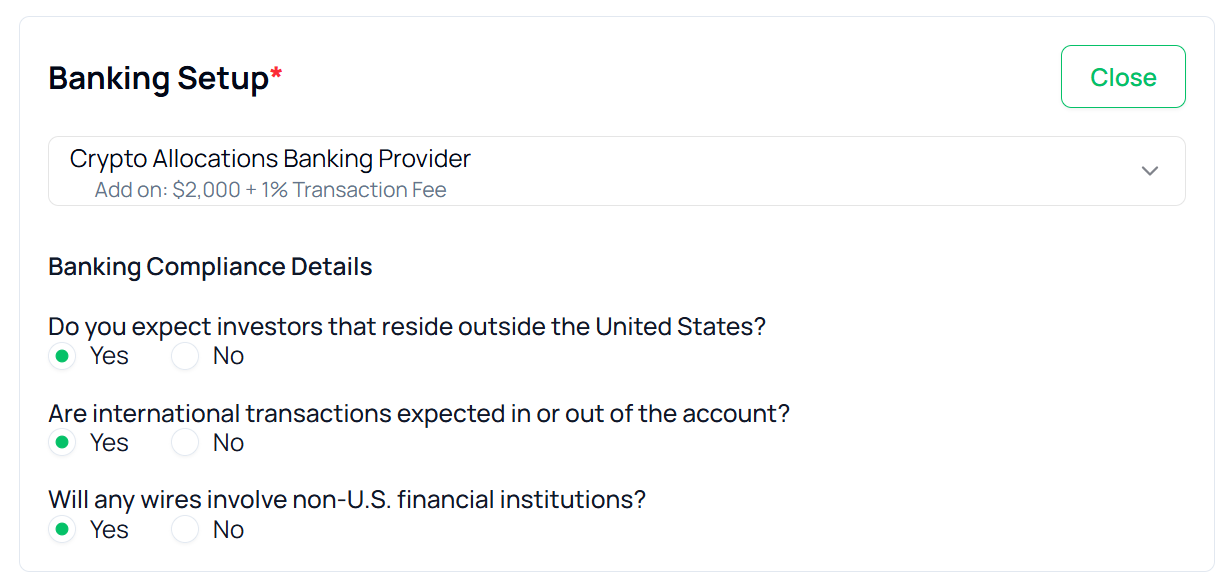
### Banking Compliance Details
When selecting a provider, managers must also complete compliance-related questions.
These include:
* Do you expect investors residing outside the United States?
* Are international transactions expected in or out of the account?
* Will any wires involve non-U.S. financial institutions?
These responses help Allocations coordinate with banking partners for:
* KYC review
* Cross-border wire planning
* Correspondent banking setup
After selecting the banking provider and completing compliance details, click **Save**.
Banking must be configured before requesting wires or closing the deal.
***
### Organization
The **Organization** section defines which organization the deal belongs to.
This is the final step in the Deal Setup process.
Each deal must be linked to an organization.\
The selected organization determines ownership, entity structure, and internal management permissions.
To configure this section, click the edit icon in the top right.
### Organization Details
Under **Organization Details**, managers can:
* Select an existing organization
* Create a new organization (if required)
If multiple organizations exist in your account, select the appropriate one from the list.
The selected organization will appear under the Name field once saved.
### Selecting an Entity Under Organization
After selecting an organization, managers must select the available entity under that organization.
The screen will display:
* Entity Name
* Entity Type (LLC / LP)
* Structure (Master LLC, Series, etc.)
* State of Incorporation
* EIN Status (if available)
Selecting the entity determines which legal structure this deal will operate under.
If no suitable entity exists, click **Create New Entity** and complete the entity setup process.
### Final Step in Deal Setup
Once the organization and entity are selected:
1. Click **Save**.
2. Confirm the changes.
A confirmation message will appear indicating that the entity and organization have been successfully updated.
At this stage, the Deal Setup process is complete.
Managers can now proceed to:
* Add investors
* Collect commitments
* Upload compliance documents
* Request first close
***
---
# Agent Instructions
This documentation is published with GitBook. GitBook is the documentation platform designed so that both humans and AI agents can read, navigate, and reason over technical content effectively. Learn more at gitbook.com.
## Querying This Documentation
If you need additional information that is not directly available in this page, you can query the documentation by asking a question.
Perform an HTTP GET request on the following URL with the `ask` and `goal` query parameters:
```
GET https://docs.allocations.com/deals/deal-setup.md?ask=&goal=
```
`ask` is the immediate question: it should be specific, self-contained, and written in natural language.
`goal` is what the user is ultimately trying to achieve, the reason they need the answer. Sharing it helps GitBook give you a better, more relevant answer. A goal is most helpful when it describes the outcome the user wants rather than restating the question. For example, with `ask=how do I create an API token`, a goal like `automate deployments from our CI pipeline` lets GitBook tailor the answer to that use case.
The response will contain a direct answer to the question and relevant excerpts and sources from the documentation.
Use this mechanism when the answer is not explicitly present in the current page, you need clarification or additional context, or you want to retrieve related documentation sections.