> For the complete documentation index, see [llms.txt](https://docs.allocations.com/llms.txt). Markdown versions of documentation pages are available by appending `.md` to page URLs; this page is available as [Markdown](https://docs.allocations.com/organisations/managing-organisations.md).
# Managing Organisations
How to set up and manage organisations for your multi-entity fund structures on Allocations
### Step 1: Navigate to the Organizations Page
To begin creating an organization, open the **Organizations** section from the left sidebar in the platform navigation.
The Organizations page displays a list of all organizations associated with your account. This page includes:
* A summary showing the total number of organizations
* A searchable list of existing organizations
* Options to filter or export organization data
* A **Create Organization** button used to start the creation process
If you already belong to multiple organizations, they will appear in this list along with metadata such as entity count and creation date.
### Step 2: Create a New Organization
To create a new organization, click **Create Organization** in the top-right corner of the Organizations page.
A modal window will appear prompting you to enter the organization details.
The primary field required to create the organization is:
**Organization Name**
This field should contain the full legal or operational name of the organization that will manage deals and investments within the platform.
After entering the organization name, click **Create Organization** to finalize the creation process.
Once submitted, the organization will be added to your list and you will automatically be assigned the **Admin role**.
### Step 3: Access the Organization Dashboard
After creating the organization, selecting it from the list will open the **Organization dashboard**.
This page provides an overview of the organization and includes several management sections such as:
* Members
* Deals
* Entities
* Defaults
Each section allows administrators to configure different aspects of the organization's operations within Allocations.
## Managing Organization Members
### Adding Members
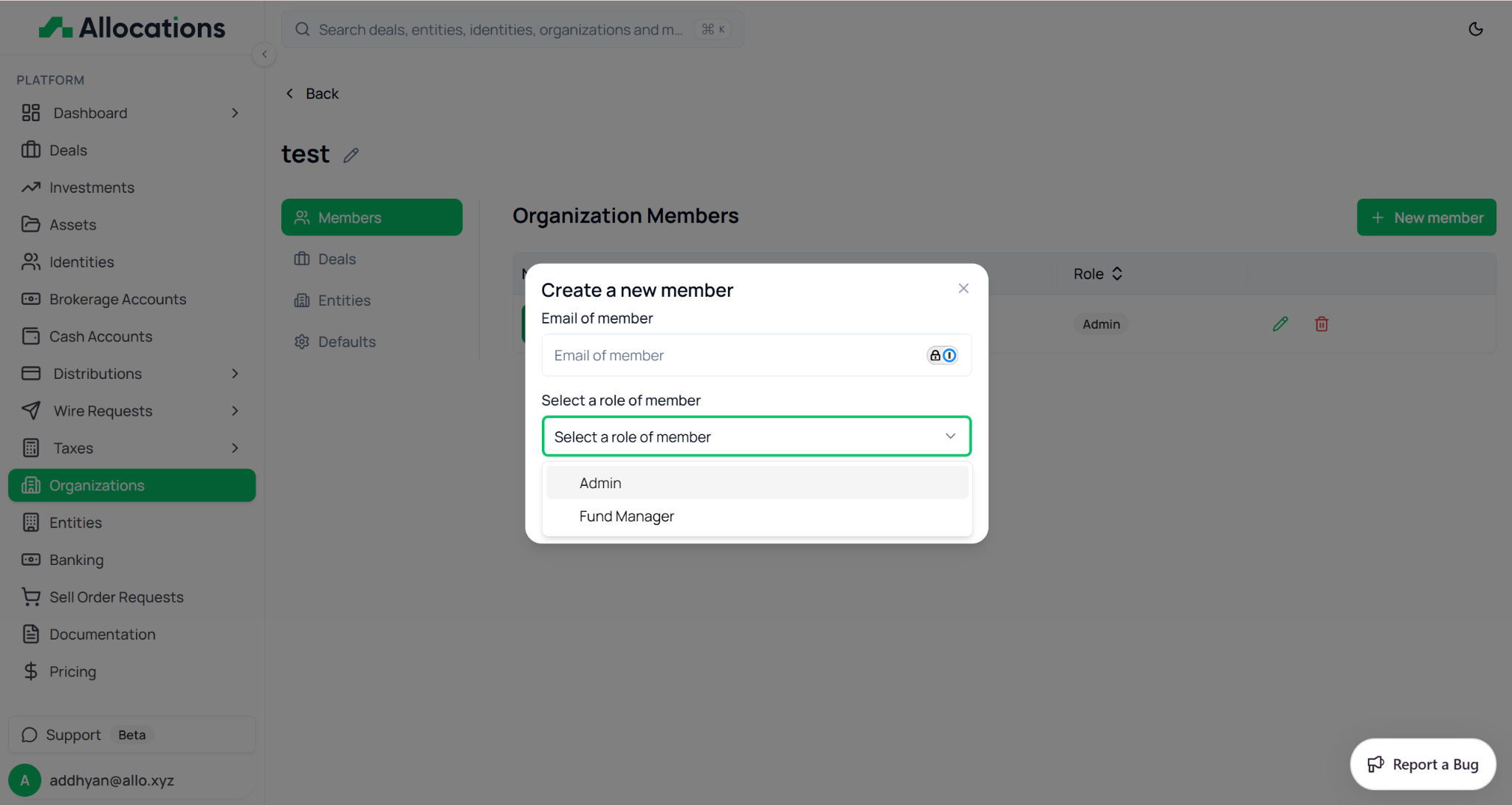
Organizations can include multiple users who collaborate on deals and investments. To add a new member, open the **Members** tab within the organization dashboard.
Click **New Member** to invite a user to the organization.
A modal window will appear where you must provide:
**Email of Member**
Enter the email address of the user you want to invite.
**Role of Member**
Select the role that defines the member's permissions within the organization.
Available roles typically include:
**Admin**
Admins have full access to organization settings, including managing members, entities, and operational configurations.
**Fund Manager**
Fund Managers typically have operational access to manage deals and investments but may have limited administrative permissions depending on platform settings.
After entering the required information, confirm the invitation to add the member to the organization.
## Organization Defaults
The **Defaults** section allows administrators to configure foundational settings for the organization, including representatives, contact individuals, and address information. These defaults are often used across entities and operational workflows.
### Representative
The **Representative** refers to the entity or individual responsible for the organization and the entities associated with it.
This representative is often used for legal documentation, compliance purposes, and other administrative processes related to the organization.
Administrators can assign or update the representative identity by selecting **Set Identity**.
***
### Designated Individual
When the organization representative is an entity rather than an individual, a **Designated Individual** must be assigned.
This individual serves as the primary contact responsible for regulatory and administrative communication, including matters related to IRS filings.
The designated individual can be updated by selecting **Change Individual**.
***
### Organization Address
The address section stores the official location details for the organization.
This information may be used for compliance, reporting, and documentation purposes.
Administrators can enter the following address fields:
* Address Line 1
* Address Line 2
* Country
* Region or State
* City
* Postal or ZIP Code
After entering the information, click **Save Address** to store the organization’s address details.
---
# Agent Instructions
This documentation is published with GitBook. GitBook is the documentation platform designed so that both humans and AI agents can read, navigate, and reason over technical content effectively. Learn more at gitbook.com.
## Querying This Documentation
If you need additional information that is not directly available in this page, you can query the documentation by asking a question.
Perform an HTTP GET request on the following URL with the `ask` and `goal` query parameters:
```
GET https://docs.allocations.com/organisations/managing-organisations.md?ask=&goal=
```
`ask` is the immediate question: it should be specific, self-contained, and written in natural language.
`goal` is what the user is ultimately trying to achieve, the reason they need the answer. Sharing it helps GitBook give you a better, more relevant answer. A goal is most helpful when it describes the outcome the user wants rather than restating the question. For example, with `ask=how do I create an API token`, a goal like `automate deployments from our CI pipeline` lets GitBook tailor the answer to that use case.
The response will contain a direct answer to the question and relevant excerpts and sources from the documentation.
Use this mechanism when the answer is not explicitly present in the current page, you need clarification or additional context, or you want to retrieve related documentation sections.